
Weave Pet
This is the Windows companion for Weave. It sits on your screen, watches for @bubble, and brings back an answer from your company. You do not need the Weave source code.
1. Sign in and connect a tool
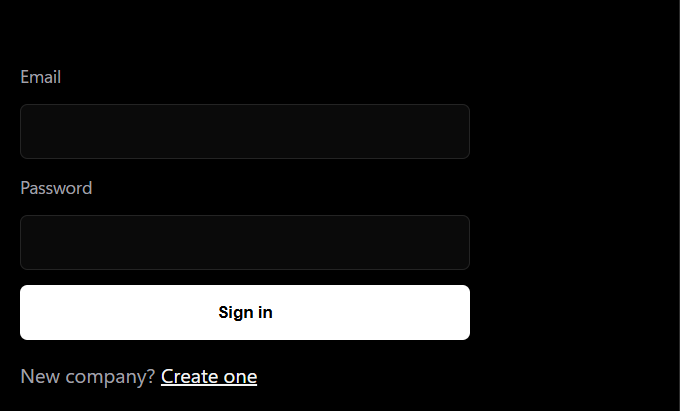
- Open the Weave site and sign in.
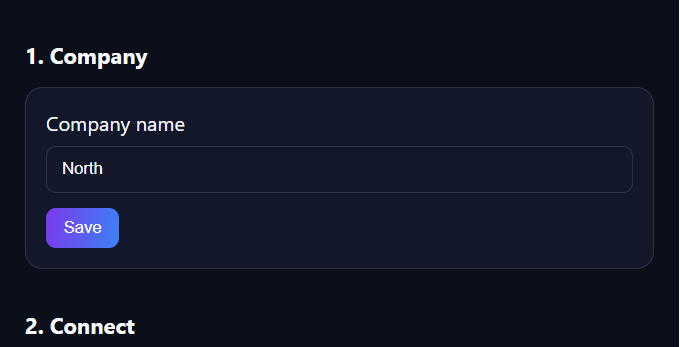
- On Set up Weave, enter the company name and save it.
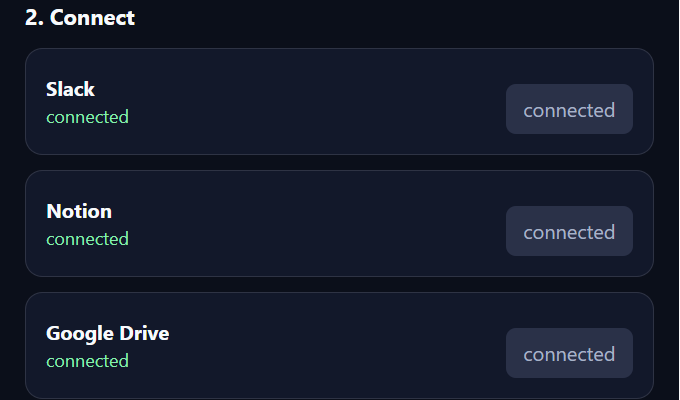
- Connect at least one tool. Slack, Notion, Google Drive, and GitHub can be connected. HubSpot is not available yet.
- One connection is enough to start. The setup page does not show excerpts from those tools.
2. Install the pet
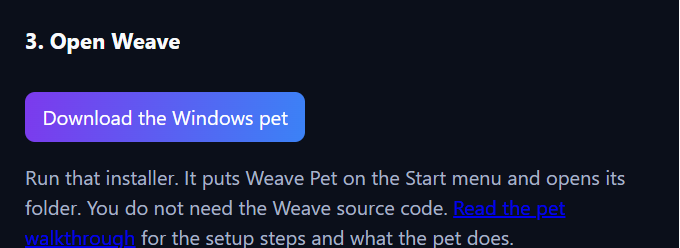
- On the setup page, choose Download the Windows pet.
- Run
WeavePetSetup.exe. - The installer puts Weave Pet on the Start menu and opens its folder. That folder is
%LOCALAPPDATA%\Weave\Pet. - Leave that folder open. The next step saves a file into it.
Running the installer again replaces the program and keeps an existing pet.config.json.
3. Give the pet its login
- On the setup page, choose Open Weave.
- Download
pet.config.json. The token inside it is shown once. If you lose the file, choose Open Weave again. - Save that file in the Weave Pet folder, next to
WeavePet.exe. - Open Weave Pet from the Start menu.
If the pet opens a message that asks for pet.config.json, save the file in the folder it opened, close the pet, and open it again.

WeavePet.exe is in the same folder.4. Ask from Cursor
- Keep Weave Pet running.
- In the Cursor composer, type
@bubbleand the question, then pause.@bubbleturns purple when the pet sees it. - A dot appears on the pet. The card opens with the answer, a short quote, and the source.
- Choose Approve. That replaces the
@bubblesentence with the answer. The rest of the composer stays. - Choose Reject to close the card without changing the composer.
For Cursor’s own chat, open Settings, then MCP, and add the server shown on the setup page after Open Weave. The same JSON can be saved as .cursor/mcp.json. That chat path does not use the pet window.

5. Ask from Gmail
- Keep Weave Pet running.
- In Chrome, open
chrome://extensions, turn on Developer mode, and choose Load unpacked. - Select the folder the installer created:
%LOCALAPPDATA%\Weave\Pet\gmail. - Open a Gmail draft. Type
@bubbleand the question, then pause. - The pet says “Reading the company notes,” then shows the card.
- Choose Approve. The answer is written into the draft in place of
@bubble. You still send the email yourself. - Choose Reject and the draft is left as you typed it.
If nothing in the company notes matches, the pet says “Nothing in the company notes matches that” and the draft is not changed.
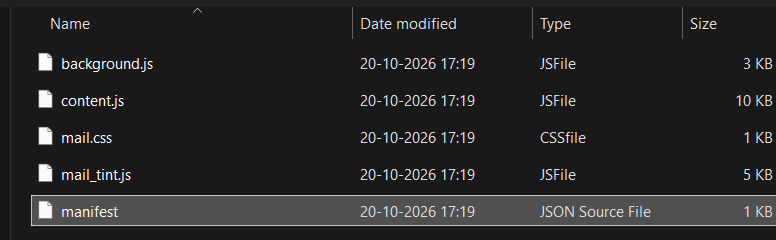
gmail folder inside the Weave Pet folder.What the pet does
| Action | What happens |
|---|---|
| It follows your typing | While you type, the pet stays near the text caret and looks toward the pointer. |
| Left-click and drag | Moves the pet and leaves it where you drop it. It stops following the caret. |
| Right-click the body | The pet gives a short poke. |
| Double right-click | Switches companion. The shapes are Wisp, Knot, Loaf, Pebble, Spark, and Spindle. The choice is remembered. |
| Ctrl+Alt+. | Brings the pet to the pointer and lets it follow the caret again. |
| Ctrl+Alt+W | Closes the pet. |
| Purple dot | An answer is ready. The card then opens beside the pet. |
| Approve | In Cursor, replaces the @bubble sentence. If that sentence is already gone, the pet adds the answer to the composer, pastes it, or copies it and says “Copied — paste it into the chat.” In Gmail, writes the answer into the draft and does not send the email. |
| Reject | Closes the card and does not change what you typed. The same note is not offered again for 10 minutes. |
| Eyes look down | You pinned the pet and then moved on. It is waiting. |
| It peeks | You pinned the pet, and you are typing somewhere else on the screen. |
| Weave didn’t answer | The company service did not return an answer. “Weave didn’t answer in time” means the wait ran out. Reject the card and ask again. |
If it does not start
- The message about
pet.config.jsonmeans the login file is not next toWeavePet.exe. Download it again from Open Weave and save it in that folder. - No card after
@bubblemeans the pet did not find an answer you can see, or Weave Pet is not running. - Gmail only watches a draft after the unpacked extension is loaded and Weave Pet is running.